Most tablet buyers do not need an active stylus
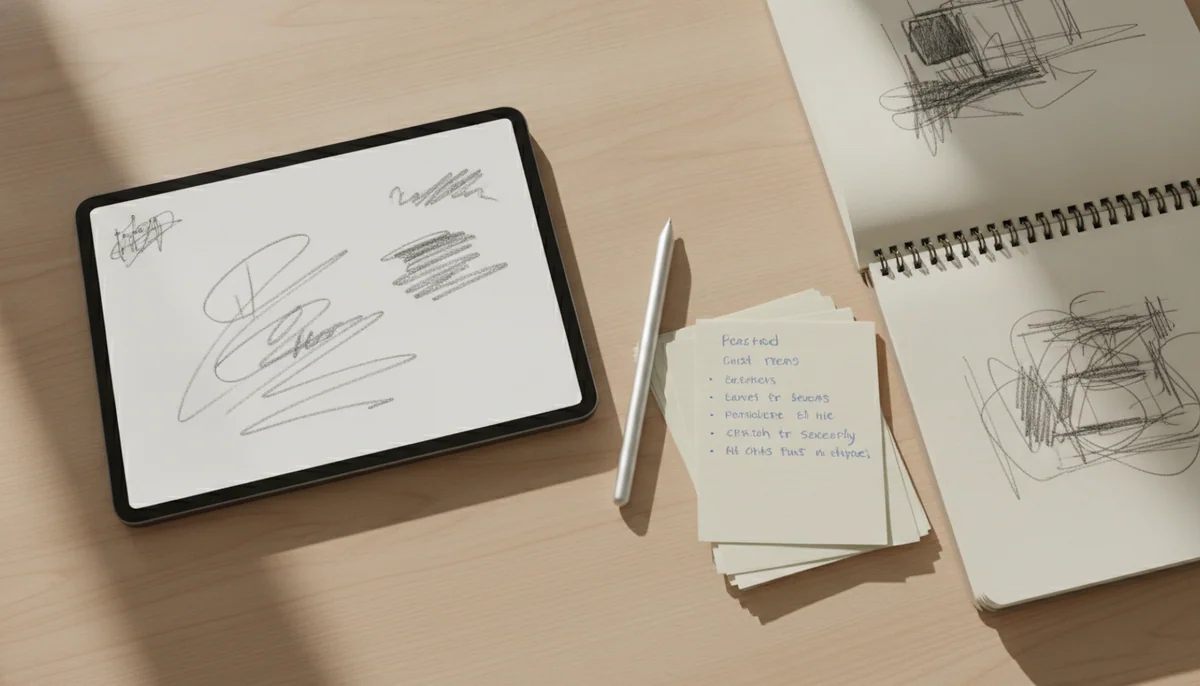
A stylus can turn a tablet into a notebook, sketchbook or document desk, but only for somebody who wants to write or draw directly on the screen. It does not improve streaming, reading, browsing, email, video calls, keyboard work or games that were designed for touch. For those jobs, a pen is another object to buy, charge, store and eventually misplace.
The useful test is not whether stylus support sounds convenient. Ask what you will write with it on Tuesday afternoon. Lecture notes, client signatures, mathematical workings, sheet-music marks, illustration and repeated PDF annotation are credible answers. “I might doodle” is usually an accessory shopping impulse wearing a productivity hat.
Buy pen support when the pen replaces something
A stylus earns its place when it replaces paper notebooks, printed readings, a drawing pad or an awkward mouse-driven markup routine. The strongest buyers already know which documents, classes or creative projects will reach the screen.
Skip it when touch and typing already work
A finger remains better for tapping controls, scrolling feeds and casual games, while a keyboard remains better for long prose, spreadsheets and sustained office work. Adding a pen does not make a cramped screen larger, a slow tablet faster or a mobile app equivalent to desktop software.
A cheap stylus and an active pen are not the same tool
A basic capacitive stylus imitates a fingertip. It can tap buttons, scroll, sign a delivery form and make a rough mark in almost any touchscreen app. It usually cannot tell the tablet precisely where the tip is before contact, reject a resting palm reliably or report how hard the user is pressing.
An active stylus communicates with a digitizer built into a compatible display. That relationship can provide finer positioning, palm rejection, hover behavior, tool shortcuts, tilt or pressure data, depending on the particular tablet, pen and application. Compatibility is therefore a hardware question, not a matter of finding a tip that physically touches the glass.
Even genuine active pens do not all offer the same controls. Apple’s entry 11-inch iPad supports the USB-C Apple Pencil and the first-generation Apple Pencil, but it does not support Apple Pencil Pro or the second-generation Pencil. The USB-C Pencil is suitable for handwriting and document markup, yet artists should notice its missing pressure sensitivity and the tablet’s non-laminated display before treating it as a cheaper version of an iPad Air drawing setup.
Compatibility can also change between devices that look almost identical. The current iPad mini supports Apple Pencil Pro and the USB-C Pencil but not the second-generation Apple Pencil, so an owner upgrading from the previous mini may have to replace a functioning pen. “It attaches to the side” is not a compatibility standard.
Three jobs justify the expense
Handwritten notes that must remain organized
A pen is worthwhile when handwriting helps you think, remember, diagram or work through material that becomes clumsy on a keyboard. Students can keep notes beside slides, mark readings without printing them and rearrange material later. Professionals can annotate meeting documents, draw quick systems and retain searchable or exportable copies instead of scattering pages among several notebooks.
The tablet still needs enough screen space for the material. An 8-inch device is excellent for a quick field note but cramped beside a full PDF, while a 13-inch tablet provides a generous page and becomes tiring to hold. Our guide to choosing a tablet size deals with that physical trade before a pen makes it more expensive.
Documents that would otherwise be printed
PDF annotation is the broadest reason to buy an active pen because it demands precision without always demanding pressure sensitivity. A teacher marking assignments, musician writing on a score, contractor circling a plan or student highlighting a paper can benefit even if nobody involved intends to create art.
Here, display size and software matter at least as much as the pen. A good stylus cannot repair an app that flattens annotations unexpectedly, mishandles files or makes export tedious. Test the complete route from receiving a document to returning or archiving the marked copy.
Drawing that needs more than a fingertip
Illustration is the use case most likely to justify pressure sensitivity, tilt, hover and programmable controls. It is also the use case most likely to expose a poor display, visible gap beneath the glass, limited application, small canvas or pen whose replacement tips and charging routine become irritating.
Artists should choose the software first, then the tablet and compatible pen that support it. The best iPads for drawing are separated by canvas, display and Pencil capability because processor speed alone does not determine whether a drawing setup feels good.
The hidden costs arrive after the pen
The accessory itself may be only the first addition. A pen attached magnetically to an exposed edge can be knocked loose in a bag, so a case with secure storage may become necessary. A large tablet may need a stand for comfortable writing. Textured screen protectors can add friction but may soften the image or alter touch response. Replacement tips wear at different rates, and a battery-powered pen introduces another charging habit.
Apple’s Air and Pro tablets make the accessory calculation especially important. Their Pencil Pro support is strong, but the pen is separate, and an older second-generation Pencil is not compatible with the current Air models. The 11-inch Air also retains a 60Hz display, so paying for formidable M4 performance does not buy the fluid 120Hz presentation offered by an iPad Pro.
Samsung takes a different approach on the Galaxy Tab S10 FE+. Its battery-free S Pen is included, and the large laminated display is well suited to notes and PDFs. The drawback is the tablet around it: the 13.1-inch body is awkward for prolonged handheld use, while the midrange processor and USB 2.0 connection make it a weak choice for demanding games, heavy creative work or a wired-monitor setup.
The cheaper Galaxy Tab A11+ demonstrates why brand recognition is not enough. It accepts finger-like capacitive styluses, but it does not support the active S Pen system, pressure sensitivity or proper palm rejection. Its responsive everyday performance and expandable storage do not turn it into a handwritten study tablet.
| Your intended work | What the pen must do | What you probably do not need |
|---|---|---|
| Occasional taps or signatures | A basic capacitive stylus can imitate a finger. | Pressure sensitivity, hover and a premium active pen. |
| Class notes and PDF markup | Precise active input, dependable palm rejection and a suitable note app. | Professional art controls if handwriting is the only goal. |
| Illustration and design | Pressure, tilt, low-latency feedback, strong software and a good laminated display. | A cheap universal stylus marketed mainly through the number of replacement tips. |
| Long prose and office work | A keyboard, trackpad and software that handle the required files. | A stylus unless annotations or diagrams form a separate part of the workflow. |
| Distraction-free handwritten work | A dedicated writing device with reliable export and an acceptable file system. | A full app ecosystem if its absence genuinely helps concentration. |
Which tablet direction makes sense?
For ordinary tablet use with occasional handwritten notes, the entry 11-inch iPad is the sensible place to begin. Its USB-C Pencil support is adequate for notes and annotation, while its reflective non-laminated screen and limited Pencil compatibility are the honest reasons not to choose it for serious art. The full strengths and compromises are covered in the 11-inch A16 iPad review.
Choose an iPad Air when Pencil Pro, a laminated display and substantial creative performance are useful, but OLED and 120Hz are not worth the step to a Pro. The 11-inch model is easier to hold and carry; the 13-inch version supplies a better full-page workspace but expects a desk or stand. The 11-inch and 13-inch iPad Air comparison makes that posture decision explicit.
The Galaxy Tab S10 FE+ is the more complete purchase for a large handwritten Android workspace because the S Pen is supplied rather than treated as an essential extra. Its ordinary processor, LCD and port limitations remain real, so it should be bought for notes, reading and documents rather than as a discounted flagship. The Galaxy Tab S10 FE+ review explains where its enormous canvas helps and where its hardware falls behind.
A dedicated writing tablet is the opposite answer. The reMarkable Paper Pro includes Marker Plus and provides a large color E Ink surface, but it deliberately omits a browser, app store, entertainment apps and broad ebook compatibility. That restriction can protect an established handwriting routine, or it can turn an expensive device into a notebook that needs another computer beside it.
Buyers attracted to that narrower approach should first read how E Ink writing tablets differ from regular tablets. If the limitations sound useful rather than alarming, the reMarkable Paper Pro review examines its pen feel, muted color, file restrictions and subscription boundaries.
Run a one-week paper test before buying
Keep a note on your phone for seven days and record every moment when you genuinely wish you could write on the tablet screen. Name the file or object involved: a lecture PDF, a client form, a floor plan, a sketch, a score or a notebook page. Do not count moments created by thinking about the accessory.
At the end of the week, separate those moments into three piles. The first requires precise handwriting or drawing and supports an active pen. The second would be faster with a keyboard. The third is adequately handled by a finger or a cheap capacitive tip. If the first pile is small, keep the simpler tablet and spend nothing.
Buy an active stylus when it replaces a repeated paper or creative workflow, choose the exact pen system that workflow needs, and walk away when the only argument is that the tablet supports one.
Frequently Asked Questions
Can any stylus work on any tablet?
A basic capacitive stylus can imitate a finger on most touchscreens, but active features require a tablet and pen that explicitly support each other.
Is an active pen necessary for handwritten notes?
It is the sensible choice for regular handwriting because precision and palm rejection matter, while a basic capacitive stylus is best reserved for occasional marks or signatures.
Do I need pressure sensitivity for note-taking?
No, dependable positioning and palm rejection matter more for ordinary handwriting, although pressure becomes important for expressive drawing and some lettering.
Is a stylus useful for reading?
It is useful when reading includes highlighting, margin notes or document markup, but it adds little to books and articles that you only turn and scroll through.
Can an active stylus replace a keyboard?
No, handwriting suits notes, diagrams and annotation, while a keyboard remains faster and more comfortable for long prose, spreadsheets and sustained office work.
Does every Samsung tablet support the S Pen?
No, Samsung sells tablets with full active S Pen support and others that accept only finger-like capacitive styluses, so the exact model must be checked.
Does every current iPad support Apple Pencil Pro?
No, Pencil compatibility varies by iPad generation, and the entry 11-inch iPad cannot use Apple Pencil Pro.
Is a dedicated writing tablet better than an iPad or Galaxy tablet?
It is better for distraction-free handwriting and reflective-screen reading, but worse when the work needs conventional apps, rich color, broad ebook access or general computing.