Yes, a tablet is a computer, but its shape changes what it is good at
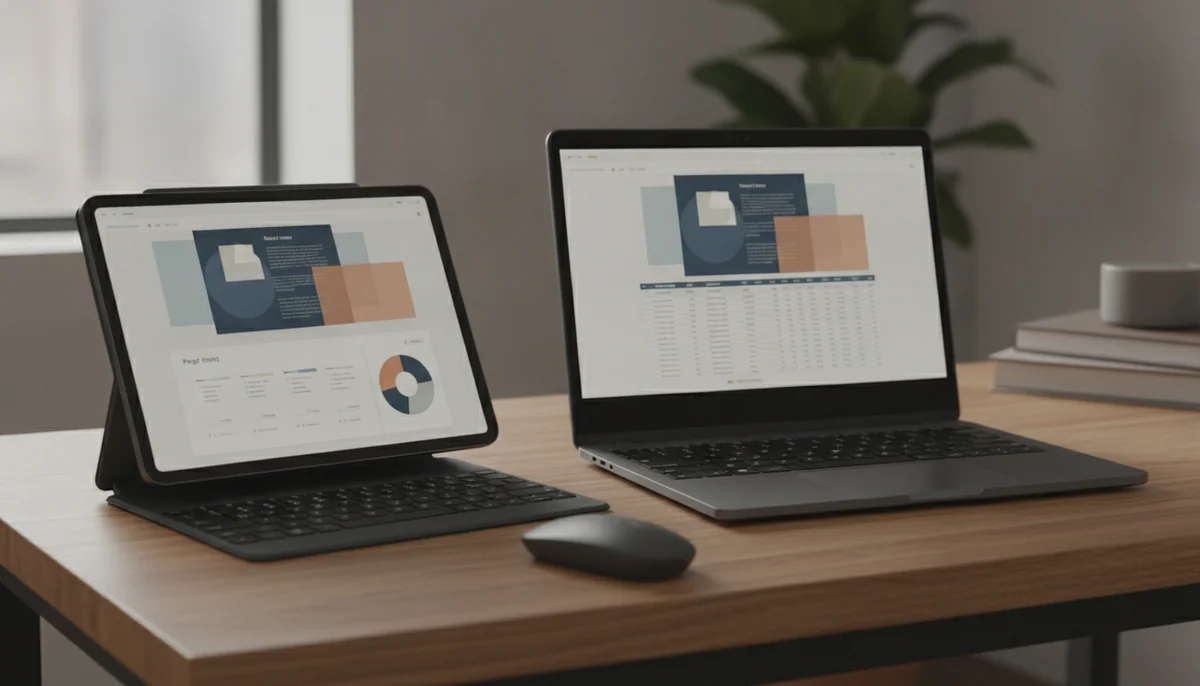
A computer takes input, processes data, stores information and produces output. A tablet does all four. It has a processor, memory, storage, an operating system, applications, networking, a battery and a display that doubles as its main input surface. Calling it anything less than a computer confuses the familiar shape of a PC with the function of computing.
The more useful distinction is not whether a tablet belongs in the category. It is what kind of computer it is. A tablet is designed around direct touch, a flat screen, mobile applications and short transitions between carrying and using it. A laptop is designed around a hinged display, keyboard, trackpad and desktop-style software. A desktop sacrifices mobility to gain a permanent workspace, broader peripheral support and more room for sustained performance.
Choose a tablet first: when reading, video, handwriting, drawing, travel, child profiles or using a screen while standing matter more than conventional desktop software.
Choose a laptop or desktop first: when the work depends on long typing sessions, many visible windows, specialist applications, extensive file management, multiple displays or hardware upgrades.
This is why the honest answer contains both a firm yes and a practical warning. Tablets are computers, but belonging to the category does not make every computer interchangeable.
The screen is not merely a smaller monitor
On a conventional PC, the screen shows an object while a mouse, trackpad or keyboard manipulates it from elsewhere. A tablet collapses that distance. You tap the button itself, drag the page itself and write directly where the mark appears. That direct relationship makes some jobs faster, more natural or possible in places where opening a laptop would be awkward.
Where the tablet shape wins
- Reading in portrait orientation while sitting, reclining or standing
- Handwriting directly on notes, forms, diagrams and PDF margins
- Sketching on the same surface that displays the artwork
- Showing a page, photograph or video without placing a computer on a desk
- Carrying downloaded books and entertainment in a small bag
- Letting a child interact through large touch targets instead of a mouse
Where the keyboard-shaped machine wins
- Writing and editing long documents
- Working across several windows, files and browser tabs
- Running software made specifically for Windows, macOS or ChromeOS
- Using precise pointer control in spreadsheets and complex interfaces
- Connecting several displays, drives and other peripherals
- Upgrading, repairing or expanding hardware over time
None of the tablet advantages is literally impossible to reproduce elsewhere. A convertible laptop can fold into a touch slate, a desktop can use a drawing display and a phone can handle many of the same mobile apps. The tablet’s advantage is that touch, screen, battery and computing hardware arrive as one thin object that can be held, rotated, passed across a table or placed flat beneath a pen.
That combination matters most when posture and place are part of the task. A laptop is portable between work surfaces; a tablet remains usable when no work surface exists. The difference becomes obvious on a train, beside a hospital bed, in a kitchen, during a standing inspection or while marking a document by hand.
A tablet can replace the device you use lightly, not the software you need deeply
Email, web browsing, streaming, video calls, documents, presentations and simple photo editing exist on both sides of the divide. Listing shared activities therefore tells you very little. The real question is whether the tablet version preserves the features, files, extensions, peripherals and workflow that matter to you.
A browser-based task may transfer cleanly. A desktop application may have a reduced mobile edition, require a subscription, open files imperfectly or have no tablet version at all. Even familiar software can behave differently when it expects touch instead of a pointer. Before replacing a primary computer, write down the exact applications, websites, file types and accessories you use during a normal week, then verify each one rather than accepting “productivity” as a feature.
Adding a keyboard does not settle the matter. It improves typing and can make a good tablet more comfortable at a desk, but it does not change the operating system, restore missing programs or guarantee desktop-class window management. A keyboard case can also make the complete package heavier, less stable on a lap and more expensive than the bare tablet suggested. Readers actively trying to consolidate devices should compare the tablets most capable of replacing a laptop instead of assuming any slate can do it.
| Priority | Tablet | Laptop | Desktop |
|---|---|---|---|
| Touch and pen use | Best fit because the display is the input surface | Available on some models, often with ergonomic compromises | Usually requires a separate drawing or touch display |
| Reading and handheld video | Best fit for rotation, carrying and casual posture | Usable, but the keyboard remains attached | Poor fit away from a fixed viewing position |
| Long-form typing | Possible with an accessory keyboard | Best mobile fit with a built-in keyboard and trackpad | Best fixed fit when portability is irrelevant |
| Specialist desktop software | Frequently limited by mobile operating systems | Strong fit when the correct operating system is chosen | Strongest fit for demanding and expandable setups |
| Many windows and displays | Improving, but dependent on model, app and operating system | Good for ordinary multitasking and external displays | Best fit for permanent multi-monitor work |
| Repair and upgrades | Usually sealed and minimally repairable | Varies widely, with many modern models offering little access | Best fit when standard parts and chassis access are available |
If the decision still feels abstract, the site’s direct laptop and tablet comparison starts with workload rather than category labels. Students should also consider the broader mix of computers and tablets suited to study, because a course requirement can decide the format before personal preference gets a vote.
Not every tablet is trying to be the same kind of computer
“Tablet” describes a physical format, not one uniform software experience. A Fire tablet is an Amazon-centered entertainment device. A conventional Android tablet offers a broader mobile app ecosystem. An iPad can scale from casual reading to sophisticated creative work, although it still runs iPad software rather than macOS. An E Ink writing tablet may deliberately remove almost every general-purpose feature.
The operating system matters more than a processor name when the required app is absent. Amazon states that its Fire HD 8 does not support Google Play, and retained owners describe both satisfying entertainment use and frustration with unavailable Google apps, slow web experiences and lock-screen promotion. Its compact form is useful, but the software boundary remains part of the hardware purchase because the two cannot be separated in daily use.
The larger Fire HD 10 follows the same rule with a more comfortable Full HD canvas. Its listing emphasizes streaming, reading, expandable storage and family controls, while exact owners repeatedly warn that the Amazon Appstore does not contain every familiar Android application. It is a good example of a tablet that performs its intended role well without becoming a general substitute for a PC.
The reMarkable Paper Pro pushes specialization further. Its listing presents an 11.8-inch color E Ink writing surface with Marker Plus, but no normal app store, browser or protected Kindle library. Owners value the paper-like writing, organized notebooks and absence of distractions, yet they also describe muted color, a high total cost and failures serious enough to make return and warranty terms important. It is unquestionably a computer, even though refusing to behave like a general computer is its central proposition.
Readers drawn to that narrower idea should first understand how an E Ink writing tablet differs from a regular tablet. The distinction is not merely display technology. It changes refresh behavior, file compatibility, color, battery expectations and the range of jobs the device attempts.
Five computers, five different definitions of enough
The products below are not a ranking from best to worst. They are boundary markers. Each one makes sense only after its limitation has been accepted, and the right choice follows the job rather than the amount of hardware squeezed into the name.
Choose the Fire HD 10 when a large entertainment screen matters more than an open app store.
The 10.1-inch Full HD display, long tested endurance, expandable storage and household profiles make this the strongest of these two Fire tablets for films, magazines and shared sofa use.
Its Amazon-centered software, unofficial Google Play workarounds, modest performance and slow charging prevent it from becoming a dependable work computer.
Choose the Fire HD 8 when carrying and holding the tablet matter more than display sharpness.
The 4GB and 64GB configuration is a sensible compact companion for Kindle or Libby reading, downloaded video, simple games and low-stakes travel.
The soft 1280 × 800 screen, restricted official app catalog, weak cameras and extremely slow bundled charger keep its ambitions deliberately small.
Choose the reMarkable Paper Pro only when handwriting is already part of your working life.
The large color E Ink canvas and Marker Plus give notes and PDF annotation a focus that a notification-filled multipurpose tablet struggles to preserve.
It is an expensive digital notebook without ordinary apps, web browsing, broad ebook compatibility or the software needed to finish most professional work.
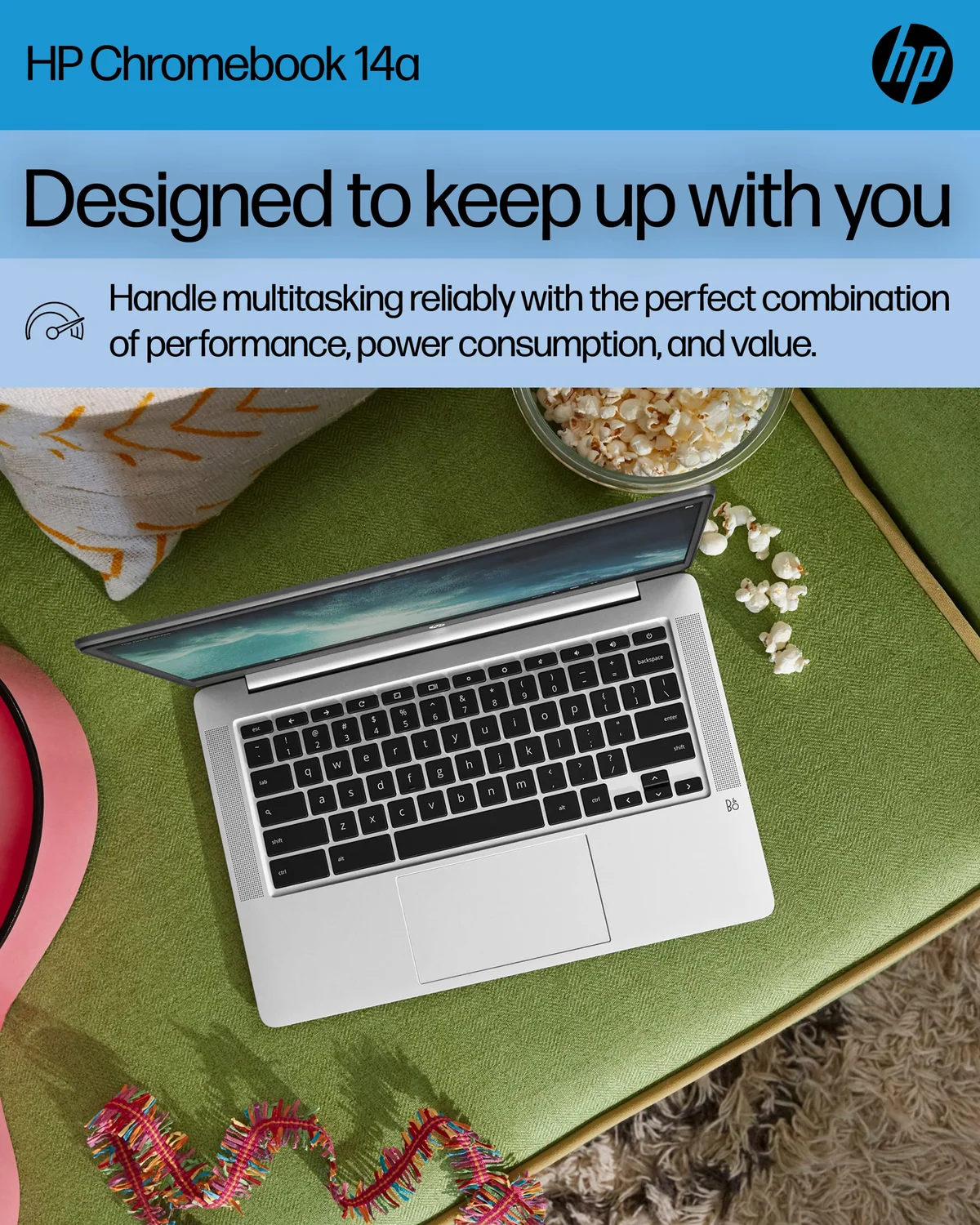
Choose the HP Chromebook 14 only for a deliberately basic keyboard-first workload.
ChromeOS setup, Google account recovery and a built-in keyboard suit simple homework, email, forms and light browser use better than a touch tablet does.
The 1366 × 768 screen, 4GB of memory, 64GB eMMC storage and uncertain remaining update horizon make this exact model a poor general laptop.
Choose the renewed Dell OptiPlex 3060 only when a fixed office machine and an easy return process suit the risk.
A healthy unit’s six-core Core i5, 32GB of memory and 1TB SSD provide far more headroom for desktop multitasking than any entertainment tablet here.
Inconsistent refurbishment, conflicting wireless claims, integrated graphics and a short warranty make immediate inspection mandatory.
The Chromebook and desktop illustrate the other half of the decision. The HP offers a keyboard, trackpad and browser-first operating system in one portable shell, but its exact 4GB configuration has little room for crowded sessions and its low-resolution panel is a permanent compromise. Owners praise easy setup for simple school and emergency business work, while one exact owner reported slowdown, freezing and difficulty with multiple windows.
The renewed Dell trades every tablet advantage for a fixed Windows workspace with generous memory and storage. Exact owners report both fast, dependable office systems and units with crashes, missing wireless features, dirty ports or display failures. That contradiction is the buying fact: the platform can be useful, but the refurbisher’s quality control cannot be assumed.
Anyone considering the HP should read what ChromeOS can and cannot do before treating its laptop body as evidence of Windows compatibility. Anyone considering the Dell should use the renewed desktop inspection checklist before moving files or allowing the return window to shrink.
The replacement test takes ten minutes
- List outcomes, not device categories. Write “annotate 80-page PDFs,” “edit spreadsheets with two windows” and “join calls with a headset” instead of “school” or “work.”
- Name every non-negotiable app. Confirm that the correct version exists for the tablet’s operating system and country.
- Check the files around the app. Confirm that fonts, macros, layers, external drives, cloud folders and export formats survive the move.
- Count the physical inputs. Add the keyboard, pen, stand, case, adapter, memory card and charger the intended workflow actually requires.
- Recreate the busiest hour. Include the video call, browser tabs, reference document, note window and external display that tend to be open together.
- Keep a fallback in the calculation. If a second computer remains necessary for one recurring task, the tablet is a companion rather than a replacement.
Storage deserves its own check because capacity labels do not reveal usable space, cloud dependence or whether applications can live on removable media. The guide to choosing 32GB, 64GB, 128GB, 256GB or microSD expansion turns that label into a workload decision.
Pen support also varies from crude passive input to pressure-sensitive active systems with palm rejection and model-specific compatibility. If handwriting or art is the reason for choosing a tablet, determine whether the job needs an active stylus before buying the screen.
The final distinction is simple
A tablet is not an incomplete computer. It is a computer optimized for holding, touching, rotating, reading and writing directly on the display. Those priorities can make it more useful than a laptop in motion and less useful than one at a desk.
Buy a tablet as your only computer when its real applications, files and accessories already cover your busiest workflow. Buy it as a companion when it removes friction from reading, entertainment, handwriting or travel but still leaves serious production to another machine. If you must keep explaining how you will work around missing software after the purchase, the tablet has already failed the replacement test.
Frequently Asked Questions
Is a tablet technically a computer?
Yes, a tablet processes, stores, receives and displays information through the same essential computing components found in other personal computers.
Is a tablet the same as a laptop?
No, both are computers, but a tablet is organized around touch and mobile software while a laptop is organized around a keyboard, trackpad and desktop-style workflow.
Can a tablet do anything a laptop cannot?
A tablet uniquely combines direct on-screen touch or pen input with a thin handheld form, although convertible laptops and added peripherals can reproduce parts of that experience.
Can a tablet completely replace a laptop?
Yes for a carefully verified mobile workflow, but not when required desktop software, complex multitasking, long typing sessions or peripheral support exceeds the tablet’s operating system.
Does adding a keyboard turn a tablet into a laptop?
No, a keyboard improves typing but does not change the tablet’s applications, file behavior, operating system or external-display limits.
Is a Fire tablet an Android computer?
Fire OS is derived from Android, but Amazon replaces the normal Google-centered experience with its own store, services and interface.
Is an E Ink writing tablet a computer?
Yes, an E Ink writing tablet is a specialized computer whose reflective display and restricted software prioritize reading, handwriting and document annotation.
Should a student buy a tablet or a laptop?
A laptop is the safer primary device when course requirements are unknown, while a tablet is stronger for handwritten notes, reading and programs designed around mobile apps.