The renewed desktop checklist that catches a bad computer before the return window closes
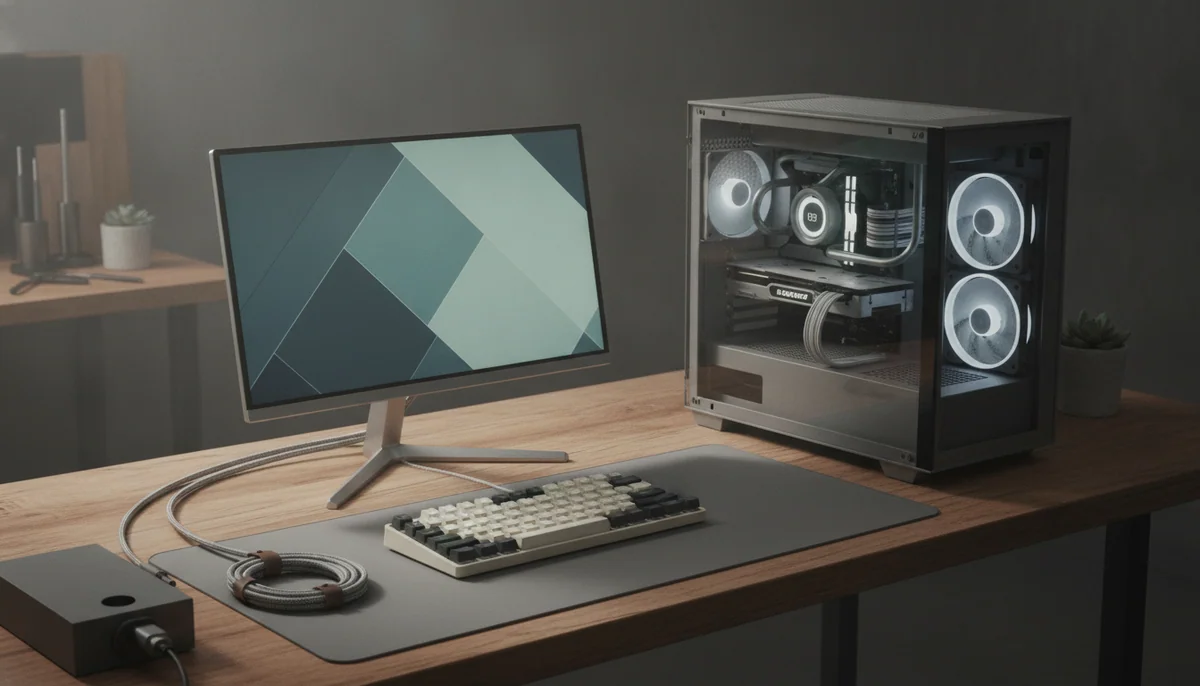
A renewed desktop is not a sealed promise about condition. It is a used computer that somebody has inspected, cleaned, configured and represented for sale, and the quality of each step can vary. The model number tells you what the chassis was designed to be; it does not prove what is inside your particular box, how much life remains in the storage, whether every port works or whether the advertised wireless hardware exists.
That distinction is visible in the retained reports for the renewed Dell OptiPlex 3060 sold with a Core i5-8500, 32GB of memory and a 1TB SSD. Some owners received clean, quick systems that handled ordinary office work without trouble. Others reported dirt, missing wireless features, faulty accessories, unstable operation, corrupted display output or inconsistent support for multiple monitors, and one business order contained two supposedly identical units with different results.
The contradiction is not a reason to reject every renewed computer. It is the reason to stop treating delivery as the end of the purchase. Your first few days with the machine should be an acceptance test conducted before important files, employee workflows or a fading return deadline make rejection inconvenient.
Proceed when
The configuration suits a clearly defined workload, the seller describes the warranty and return process, and you can test the computer immediately without depending on it for urgent work.
Walk away when
The listing hides the processor model, storage type, operating system, condition standard or warranty behind vague language, or a failed first unit would create costly downtime.

Before ordering, turn the listing into a contract you can check
Save the product title, component claims, condition description, included accessories, warranty and return terms. Listings can change, and memory is a poor substitute for a record when a seller disputes what was promised. Record the exact chassis or form factor as well. A tower, small-form-factor case and micro desktop bearing the same family name can have different ports, power supplies and upgrade limits.
Translate every attractive noun into a test. “1TB SSD” means verifying the usable capacity, drive model and health. “32GB DDR4” means confirming installed memory in the operating system. “Wi-Fi and Bluetooth” means connecting to a network and pairing a device. “Windows 11 Pro” means checking the edition and activation status rather than accepting a familiar desktop background as proof.
Watch for contradictions inside the listing itself. The OptiPlex offer, for example, describes wireless as built in while a marketing bullet refers to an included Wi-Fi adapter. Those phrases can describe different hardware, and an owner reported receiving a USB Wi-Fi dongle with no Bluetooth. Ambiguous wording should lower your confidence before purchase and move that feature to the top of the arrival checklist.
| Listing detail | What to record | Why it matters later |
|---|---|---|
| Exact model | Family name, model number and chassis size | Similar names can conceal different port layouts and upgrade options. |
| Processor | Full CPU model rather than only a speed or core count | The exact model determines capability and operating-system support more reliably than promotional shorthand. |
| Memory | Capacity, generation and any stated module arrangement | Total capacity alone does not reveal whether the promised memory is installed sensibly. |
| Storage | Capacity, SSD or hard drive, and any stated interface | A listing that says only “SSD” does not establish its type, brand or remaining health. |
| Connectivity | Ethernet, Wi-Fi, Bluetooth, display outputs and required adapters | Included dongles are not equivalent to internal hardware, and every required output needs to be present. |
| Software | Windows edition, activation claim and included licences | An installed application or operating system is useful only when it is legitimate and activates normally. |
| Protection | Warranty duration, return deadline and who pays return shipping | The practical value of a renewed computer depends heavily on the cost and difficulty of rejecting a bad unit. |
Inspect the box before you trust the desktop
Photograph visible shipping damage before opening the package, then confirm that the delivered computer matches the ordered form factor and identifying label. Check the power adapter or cable, antennas, keyboard, mouse and every other promised accessory. An accessory can be inexpensive to replace and still reveal weak quality control.
Examine the case, vents and ports under good light. Cosmetic wear may be compatible with a renewed condition grade, but bent metal, broken latches, missing screws, heavy dirt, liquid residue or damaged connectors deserve attention. Listen gently for loose pieces before applying power. If the case can be opened safely without affecting return rights, look for accumulated dust, unsecured cables, loose memory and obviously mismatched or damaged components.
Do not spend hours repairing, updating or personalizing a computer that arrived with the wrong processor, missing memory, physical damage or an undisclosed chassis substitution.
Confirm the identity of every important component
Complete the operating system’s normal first-run process without entering more personal information than necessary. Then inspect its hardware report or system-information utility. Confirm the exact processor, installed memory, storage capacity and Windows edition against your saved listing. Also check activation through Windows settings.
Capacity is only the first storage check. Identify the SSD model and use an appropriate health-reporting utility to review its reported condition, temperature, errors and usage history. A used SSD is not automatically defective, but an unhealthy drive is a poor foundation for files you care about. Any unexplained warning, disappearing drive or storage error should be resolved before the computer becomes your only copy of anything.
Check Device Manager for unknown devices, disabled hardware and warning symbols. A desktop that appears functional can still be missing drivers for audio, wireless networking or another controller. Restart after updates, then inspect again rather than assuming the first clean screen settled the matter.
| Check | Accept | Reject or investigate |
|---|---|---|
| Processor | The full model matches the order and performs normally. | The model is different, its speed remains abnormally low or firmware reports a power problem. |
| Memory | The promised capacity is available without recurring errors. | Capacity is missing, crashes appear under load or diagnostics report faults. |
| SSD | Capacity is correct and the health report shows no material warning. | The drive disappears, reports errors or shows concerning health indicators. |
| Windows | The promised edition activates and setup behaves normally. | Activation fails, an unexpected account remains or setup appears to have been bypassed improperly. |
| Devices | Required controllers appear without unexplained warnings. | Hardware is unknown, disabled or missing after normal driver updates. |
Test ports with real devices, not your eyes
A connector can look intact and still fail. Insert a known-good device into every USB port you expect to use. Connect headphones or speakers to the audio output, test the microphone input if required, and establish a wired Ethernet connection. Eject removable storage properly between ports so a file-system problem does not muddy the result.
Test each advertised display output with known-good cables and monitors. If the computer is being bought for two screens, run both at once at their intended resolutions. This matters because the retained OptiPlex reports include two business units that behaved differently with the same monitors, cables and setup. A single working connector does not prove that the complete desk arrangement will work.
Wi-Fi and Bluetooth require separate tests. Join the network, transfer enough data to expose an unstable connection, restart the desktop and reconnect. Pair a Bluetooth mouse, headphones or phone, then use it long enough to detect dropouts. Identify whether each connection comes from an internal card or a supplied USB adapter, especially when the distinction affected your purchase.
Make the computer survive an ordinary workday
Synthetic stress testing can be useful, but a realistic workload is the more important first hurdle. Open the applications you actually use, load a representative collection of browser tabs, join a video call, play media and move a large nonessential file. Let the computer remain awake for several hours while watching for freezes, restarts, visual corruption, disappearing devices, excessive fan noise or a burnt smell.
Exercise the transitions that often reveal unstable renewed systems. Put the desktop to sleep, wake it, sign out, restart it and shut it down fully. Repeat those actions with the normal keyboard, mouse, network and monitors attached. The exact OptiPlex record includes crashes, disabled input devices and display corruption, so a successful boot is not enough evidence of stability.
Run the built-in memory and hardware diagnostics available for the system, then apply normal operating-system and security updates. Firmware updates deserve more caution: use the manufacturer’s instructions, maintain reliable power and do not improvise if the computer is already unstable. Record error messages and photograph visible faults rather than relying on a vague description after the fact.
A practical three-pass test
- Identity pass: compare the case, labels, processor, memory, storage and Windows edition with the saved order.
- Function pass: test every required port, network connection, display, accessory, sleep cycle and restart.
- Workload pass: run a realistic day of replaceable work while watching for crashes, heat, noise and intermittent faults.
Do not let a good specification excuse the wrong workload
A renewed office desktop can be excellent for documents, spreadsheets, browser-heavy administration, remote access and general home computing. Large memory and SSD capacities make those jobs more comfortable, but they do not turn integrated graphics into a capable gaming or rendering system. Decide what the machine must do before deciding whether its component list looks generous.
The Dell configuration covered here illustrates the point. Its six-core Core i5-8500, 32GB of DDR4 memory and 1TB SSD are appealing for productivity, while its integrated graphics make it a poor purchase for demanding current games, professional GPU rendering or local generative-AI work. The side-panel RGB lighting changes its appearance, not that boundary.
If that office-focused balance matches your needs and you accept the refurbishment risk, read the full Dell OptiPlex 3060 renewed desktop review before considering the listed configuration. Its central drawback is inconsistent quality control, so the machine makes sense only when you can perform every relevant check promptly and return a poor specimen without disrupting your work.
Know when to return it instead of becoming its technician
Return or formally report the computer when the delivered specification is materially wrong, Windows will not activate as promised, storage reports a serious warning, memory diagnostics fail, required ports do not work, wireless features are absent, or the system crashes during ordinary use. Also reject undisclosed physical damage and any problem that makes the computer unsafe.
A simple loose cable or missing driver may have an easy remedy, but the existence of a possible repair does not transfer quality control to the buyer. Troubleshooting makes sense when the cause is clear, the fix is low risk and the result can be verified. Repeated crashes, corrupted video, an intermittently missing drive or several unrelated faults point toward return rather than rehabilitation.
Keep the packaging until the computer has passed. Preserve photos, diagnostic results, serial numbers and messages with the seller. Remove personal accounts and data before returning the machine, using the operating system’s reset process when it functions normally and following the seller’s instructions when it does not.
Keep a renewed desktop only after the delivered unit, not merely the advertised model, has earned your confidence through inspection, component verification and a stable trial under the work you bought it to perform.
Frequently Asked Questions
What is the first thing to check on a renewed desktop?
Confirm that the chassis, processor, memory, storage and operating-system edition match the saved listing before installing personal software or transferring files.
How long should a renewed computer be tested?
Test it repeatedly throughout the available return period, with the most important identity, port, storage and stability checks completed during the first few days.
Is cosmetic damage a reason to return a renewed desktop?
Return it when the damage exceeds the advertised condition grade, affects safe use or suggests impact that may have harmed internal components.
Should a used SSD be replaced immediately?
A used SSD does not require automatic replacement, but its identity and reported health should be checked before trusting it with important data.
How can I tell whether Windows is properly activated?
Open the Activation section in Windows settings and confirm that the installed edition matches the listing and reports an activated licence.
Do I need to test every port?
Test every port required by your setup and preferably every advertised port, because visible condition does not prove electrical function.
Is a Wi-Fi dongle the same as built-in Wi-Fi?
No, a USB adapter occupies a port and can differ in reliability, antenna quality and Bluetooth support from an internal wireless card.
Should I keep a renewed desktop that crashes occasionally?
No, unexplained crashes during ordinary use are grounds for prompt investigation and usually a return when they cannot be resolved and verified quickly.
Can a renewed office desktop be used for gaming?
Only light or older games may be realistic when the machine relies on integrated graphics, so demanding gaming requires a clearly identified dedicated GPU and suitable supporting hardware.
What should I keep until testing is complete?
Keep the packaging, accessories, saved listing, serial-number record, photographs and diagnostic results until the computer has passed its acceptance test.